
Topology & Neighbors
GridNMS gives you two complementary ways to see how your network fits together: the Network Topology map, which shows your devices as a live graph you can explore, and the Neighbors view, which shows the physical links GridNMS discovers automatically between devices. This page explains what each one is for and how to get the most from them.
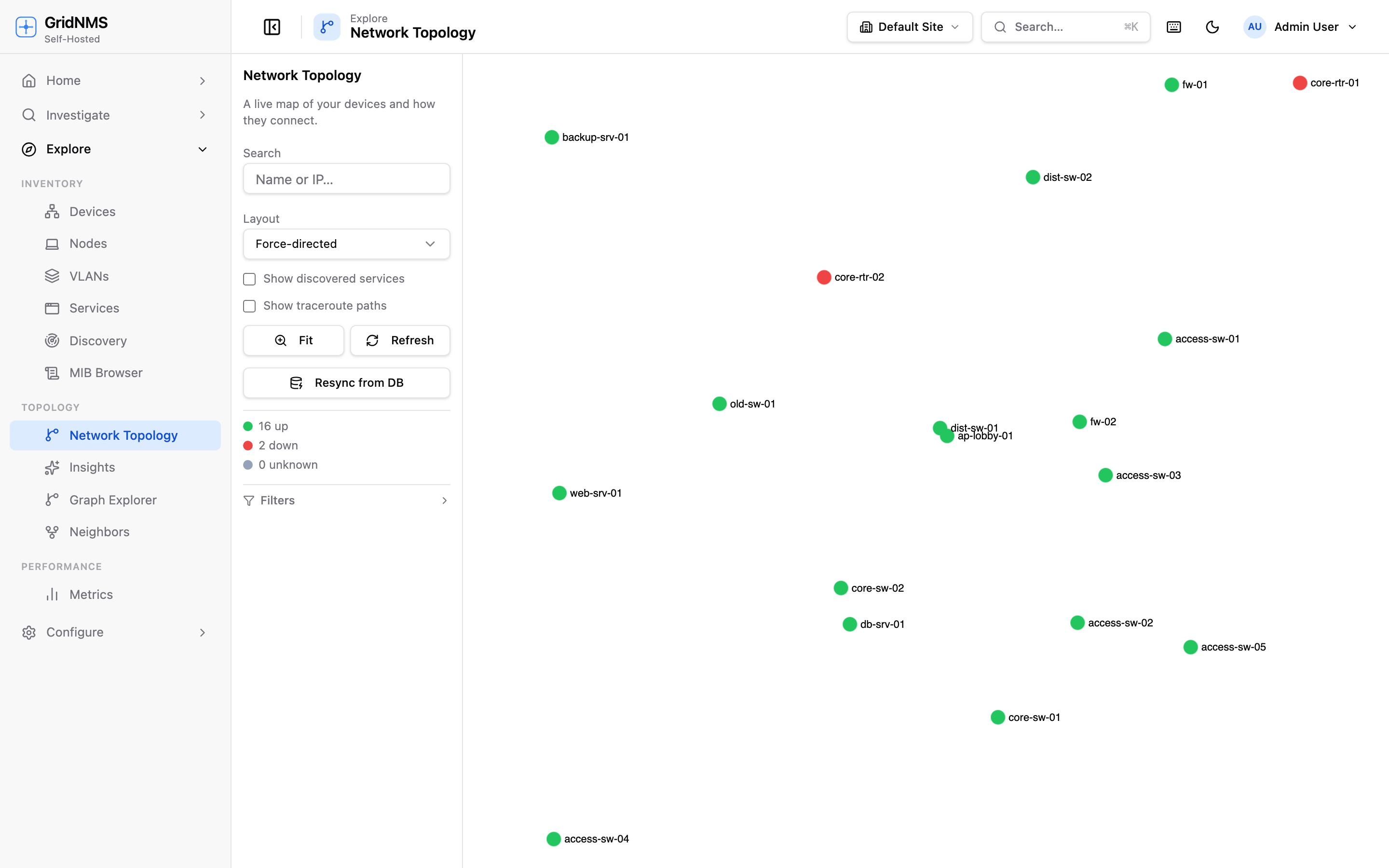 The Network Topology map, with devices colored by status and arranged in a layout.
Network Topology — the live map
Section titled “Network Topology — the live map”Open Network Topology to see your devices laid out as an interactive graph. Each node is a device, and lines between them represent connections. Devices are colored by status so you can instantly spot trouble:
- Up devices appear in their normal color.
- Down devices stand out (typically red).
- Unknown devices are shown in a neutral/muted color.
This view is best for understanding the shape of your network at a glance and for answering “if this device fails, what else is affected?”
Layout options
Section titled “Layout options”The same set of devices can be arranged several ways. Pick a layout that suits what you’re trying to see:
| Layout | Best for |
|---|---|
| Force-directed | A natural, organic arrangement that clusters related devices — great for exploring an unfamiliar network. |
| Circular | Spreading every device evenly around a ring — good for seeing all nodes without overlap. |
| Grid | A tidy, even grid — good for dense networks where you want predictable positions. |
| Hierarchical | A top-down tree from core to edge — good for showing layers (core → distribution → access). |
Filtering the map
Section titled “Filtering the map”Large networks get busy fast. Use the filter panel to show only what matters right now. You can filter by:
- Class — show only switches, only firewalls, and so on.
- Location / site — focus on one building or campus.
- Status — show only Down devices to see outages in isolation.
- Vendor — narrow to one manufacturer.
Filters combine, so you can build a focused view like “all Down access-layer switches at the West site.”
Fit and refresh
Section titled “Fit and refresh”- Fit re-centers and zooms the map so everything is visible — handy after panning around or applying filters.
- Refresh re-pulls the latest device states and links so colors reflect the current moment.
Impact and blast radius
Section titled “Impact and blast radius”Select a device on the map to see its impact — the set of devices that depend on it or sit behind it. This blast-radius view answers the critical operations question: “If I take this device down (or it fails), what loses connectivity?” Use it before planned maintenance to understand the consequences of pulling a device, or during an outage to see how far the damage reaches.
Neighbors — automatically discovered links
Section titled “Neighbors — automatically discovered links”The Neighbors view shows the physical connections GridNMS learns directly from your devices, no manual cabling diagram required.
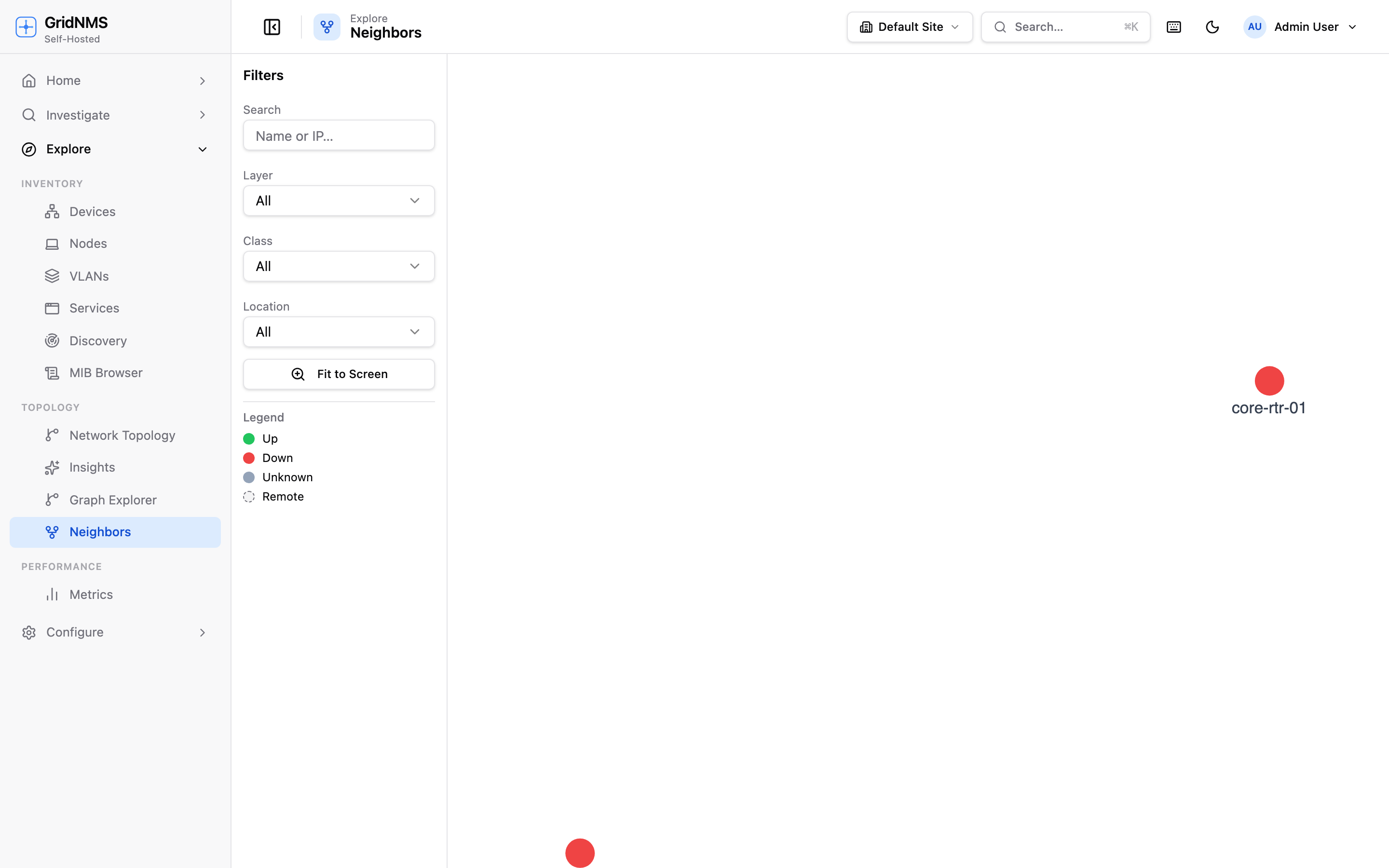 The Neighbors view shows discovered links with the connecting interfaces labeled.
How links are discovered
Section titled “How links are discovered”Network devices advertise their neighbors using standard protocols — LLDP (the vendor-neutral standard) and CDP (Cisco’s equivalent). GridNMS reads these advertisements during polling and builds a picture of which device is plugged into which, and on which interfaces. Because this comes straight from the devices, the picture stays current automatically — no resync needed.
What you see
Section titled “What you see”Each link in the Neighbors view connects two devices and is labeled with the
interfaces on both ends — for example, showing that core-sw-1 Gi1/0/24
connects to access-sw-3 Gi0/1. This is exactly the information you need to:
- Confirm a cable goes where the documentation says it does.
- Trace which uplink a closet switch uses.
- Find the port to check when an interface alarms.
Topology vs. Neighbors — which to use
Section titled “Topology vs. Neighbors — which to use”| Use Network Topology when you want to… | Use Neighbors when you want to… |
|---|---|
| See overall network health colored by status | Confirm exactly which ports connect two devices |
| Understand the blast radius of a device | Trace a cable or uplink to a specific interface |
| Filter and explore by class, site, or vendor | See the live, device-reported wiring |
| Choose a layout to communicate the structure | Verify your physical documentation is accurate |
In short: Network Topology is the big-picture, status-aware map; Neighbors is the precise, interface-level wiring view. Most operators keep both handy and switch between them depending on the question they’re answering.
Where to go next
Section titled “Where to go next”- Drill into any device from the map via Devices & Inventory.
- Discover new devices to add to the map with Network Discovery.
- Investigate alarms on a connected device in Events & Alerts.
docs built 2026-07-27 · 837a1c1d