
Events & Alerts
An event is GridNMS telling you that something happened: a device went down, an interface saturated, a trap arrived, or a log pattern matched. The Events page is where you triage all of it — acknowledge what you’ve seen, close what’s resolved, and search the full history. This page covers everything from daily triage to the rules that quiet the noise.
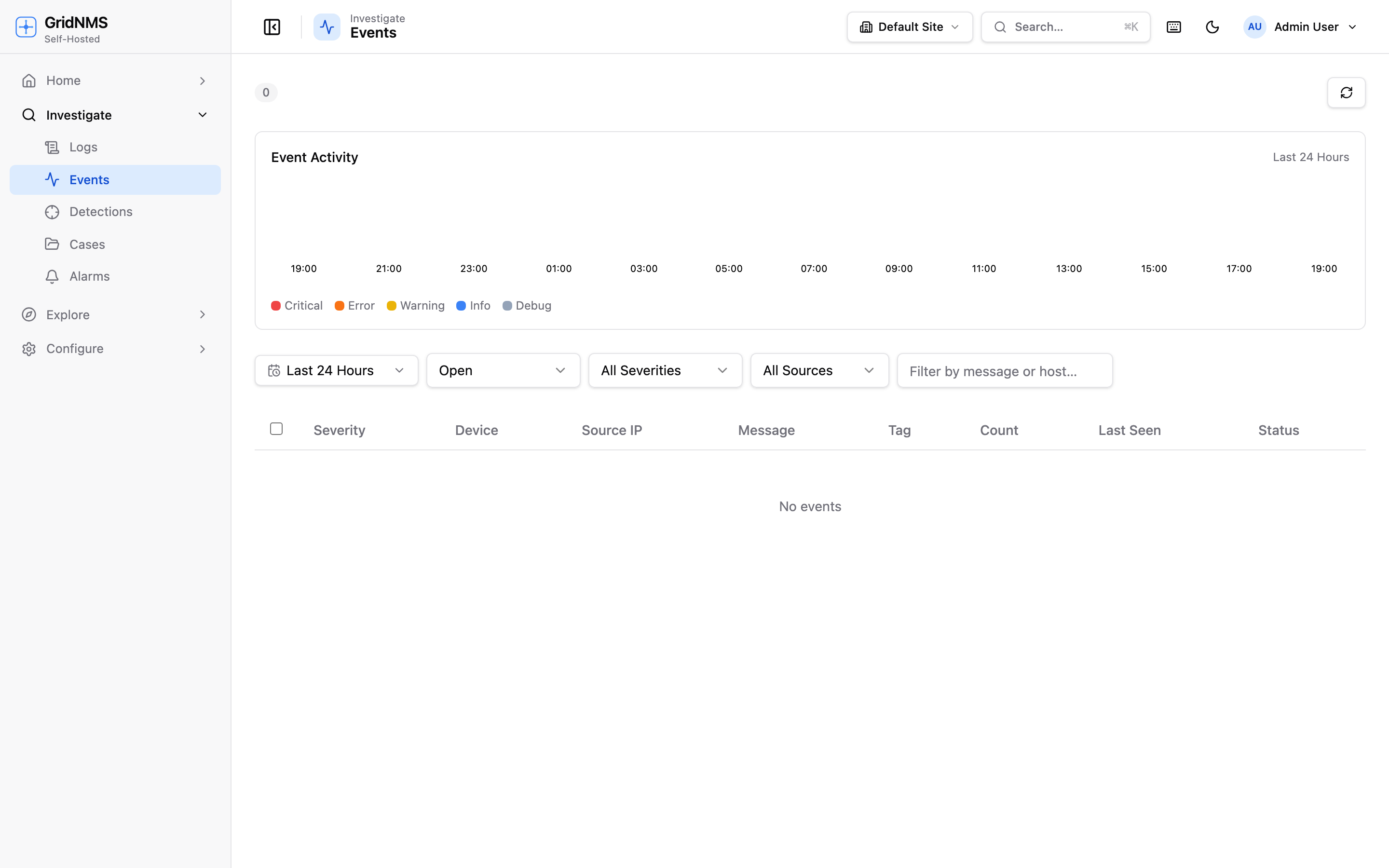 The Events page: a live, severity-colored feed with a histogram and time-range controls.
The Events page
Section titled “The Events page”Open Events to see your live event feed. Each row is one event, showing its
timestamp, severity, the device it relates to, a message, a tag
(a short label like PING_DOWN that groups related events), and its status. The
feed is color-coded by severity so the most serious items stand out.
Severity levels
Section titled “Severity levels”Events are ranked by severity, from most to least urgent. See severity levels for the full reference, but in short:
| Severity | Meaning |
|---|---|
| Critical | Major impact — needs attention now. |
| Major | Significant problem. |
| Minor | A smaller issue worth knowing about. |
| Warning | Early or low-impact signal. |
| Info | Informational; no action required. |
The severity histogram and time range
Section titled “The severity histogram and time range”Above the feed, a histogram shows event volume over time, broken down by severity. Use the time-range picker to focus the histogram and the feed on a window — the last hour during an active incident, or the last week for a review. The histogram makes spikes obvious: a sudden tall bar of Critical events usually means a real outage just started.
Acknowledging and closing
Section titled “Acknowledging and closing”Events move through three states:
- Open — new and unhandled.
- Acknowledged — someone has seen it and is on it. Acknowledging signals to the rest of the team that the event is being worked, without removing it.
- Closed — resolved. Closed events drop out of the live feed but remain in history.
To handle an event, click it and choose Acknowledge or Close, optionally adding a note. Many events that come from monitoring — like a recovered device or an interface that dropped back under its threshold — close themselves automatically when the underlying condition clears.
Bulk actions
Section titled “Bulk actions”During a storm of related events, select multiple rows with the checkboxes and acknowledge or close them all at once. This is the fastest way to clear a batch of events from a single failing device once you know the cause.
Grouping related events
Section titled “Grouping related events”When a single device or incident generates a flood of events, Cases groups the related events into one investigation so you see the big picture instead of dozens of individual rows — and so two people don’t chase the same problem. The raw Events feed still gives you the detail; drill into a device for its underlying events. See Cases for the full workflow.
Searching event history
Section titled “Searching event history”The live feed shows what’s current. To dig into the past — for an audit, a post-incident review, or to confirm how often something recurs — use Event History search. You can filter by:
- Date range — any window, not just recent.
- Device — everything that happened to one device.
- Severity — only Critical, only Warning, and so on.
- Text — match words in the event message.
History is kept far longer than the live feed, so you can answer questions like “how many times did this uplink flap last month?”
Where events come from
Section titled “Where events come from”Events are raised from several sources, all flowing into the same feed:
| Source | Example event |
|---|---|
| Reachability checks | A device stops responding → device down. |
| Thresholds | An interface crosses its bandwidth threshold. |
| SNMP traps | A device sends an unsolicited alert (e.g. a power-supply fault). |
| Log detections | An incoming log matches a detection rule (e.g. repeated auth failures). |
From the feed, matching events can be delivered to people through Notifications.
Transformation rules (admin)
Section titled “Transformation rules (admin)”Administrators can shape events before they reach you using transformation rules. Each rule matches events by criteria (device, class, severity, message text) and then takes an action:
| Action | What it does |
|---|---|
| Tag | Add a label to matching events for easier filtering. |
| Change severity | Raise or lower how urgent an event is treated. |
| Suppress | Hide noisy, known-benign events entirely. |
| Auto-close | Immediately close events you never need to act on. |
Transformation rules are how you tune GridNMS to your environment — for example, downgrading a chatty informational trap to Info, or suppressing a known cosmetic warning so it never clutters the feed.
Maintenance windows
Section titled “Maintenance windows”Planned work shouldn’t page anyone. A maintenance window tells GridNMS that certain devices are expected to be offline during a scheduled period, so events from those devices are suppressed and no alerts fire.
To use one:
- Create a maintenance window and set its start and end time.
- Choose the devices (or a site/class) it covers.
- Save. During the window, events from those devices are held back, and they appear in the upcoming maintenance panel on your dashboard.
When the window ends, normal alerting resumes automatically.
Where to go next
Section titled “Where to go next”- Get alerts delivered to email, Slack, and on-call tools in Notifications.
- Tune what raises events in the first place via Monitoring and Logs.
- Look up exact severity definitions in severity levels.
docs built 2026-07-27 · 837a1c1d