
The Dashboard
The dashboard is the first thing you see when you sign in to GridNMS. It pulls together the most important signals about your network — what’s up, what’s down, what just changed, and what needs attention — into a single screen you can scan in seconds.
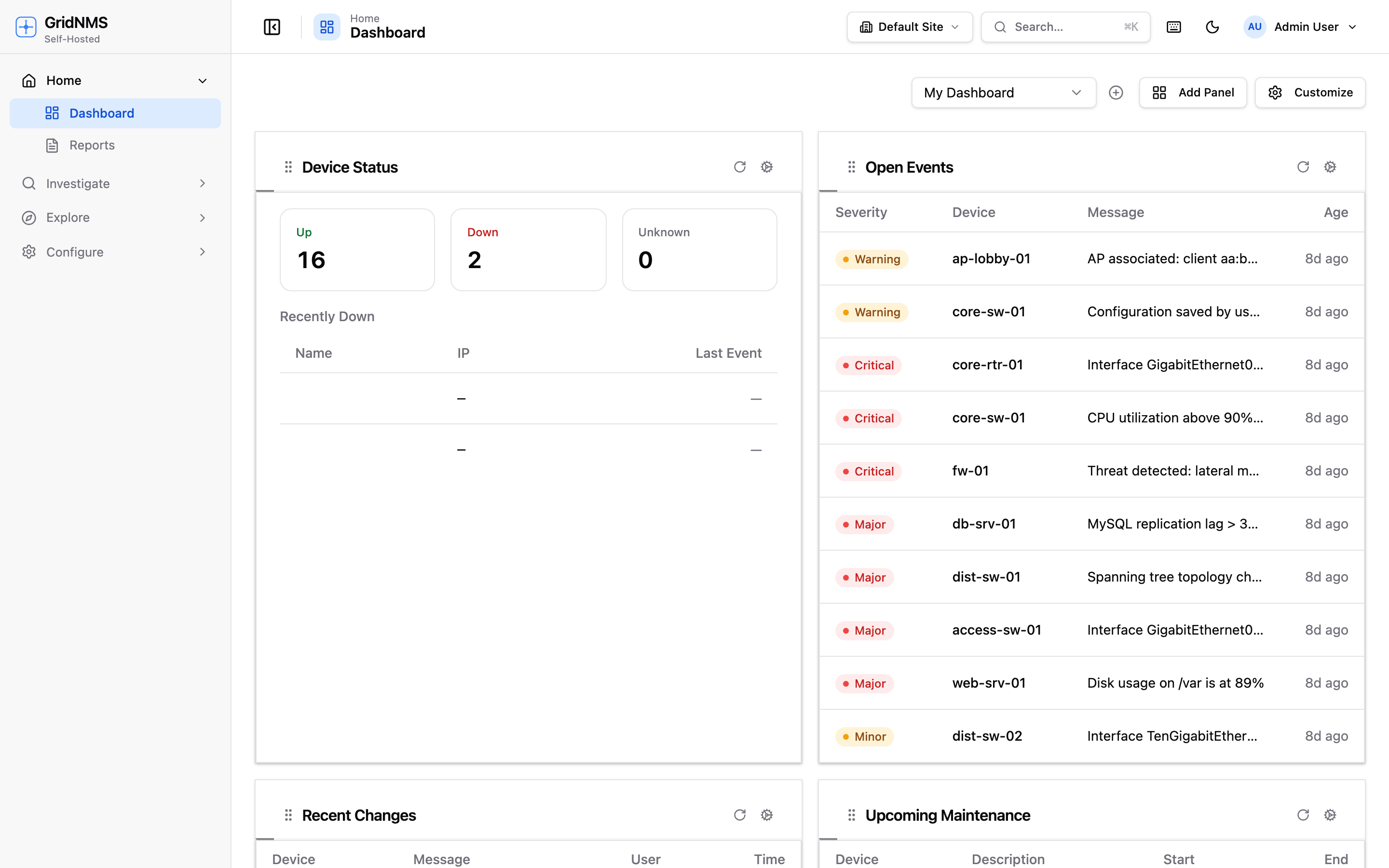 The dashboard shows device status and open events at a glance.
What you’ll find here
Section titled “What you’ll find here”The dashboard is built from panels. Each panel is a self-contained widget that shows one kind of information. A fresh install comes with a sensible default layout, and you can rearrange, add, or remove panels to suit how your team works.
Common panels include:
| Panel | What it shows |
|---|---|
| Device status | A breakdown of how many devices are Up, Down, or Unknown, usually as a donut or stat card. |
| Open events | A live feed of unresolved events, newest first, color-coded by severity. |
| Recent changes | Devices that recently went up or down, interfaces that flapped, and other state transitions. |
| Upcoming maintenance | Planned maintenance windows so you know which devices are expected to be offline. |
| Top event sources | The devices generating the most events — a quick way to spot a noisy or failing device. |
| Metric graphs | Live charts for traffic, CPU, memory, and other monitored metrics. |
| Service status | The health of the GridNMS services themselves, so you know the platform is collecting normally. |
Reading device status
Section titled “Reading device status”The device status panel uses three states, the same ones used throughout GridNMS:
- Up — the device is reachable and responding to monitoring.
- Down — the device failed its reachability check and is considered offline.
- Unknown — GridNMS has not yet been able to determine the device’s state (for example, it was just added, or its collector is offline).
Clicking any segment or number takes you straight to a filtered device list so you can see exactly which devices are in that state.
The Site selector
Section titled “The Site selector”If your organization has more than one site, a Site selector appears at the top of the page. Use it to scope the entire dashboard — and most other pages — to a single location, or choose All sites to see everything together. This is handy when different teams own different buildings, campuses, or regions.
Global search (Cmd/Ctrl+K)
Section titled “Global search (Cmd/Ctrl+K)”Press Cmd+K (Mac) or Ctrl+K (Windows/Linux) anywhere in GridNMS to open global search. Start typing a device name, IP address, interface, or page name and jump straight there. It’s the fastest way to pull up a specific device without clicking through menus.
Customizing your dashboard
Section titled “Customizing your dashboard”You can shape the dashboard to match what your team needs to watch.
Add a panel
Section titled “Add a panel”- Click Customize (or Edit layout) in the top-right of the dashboard.
- Click Add Panel.
- Choose a panel type from the list and confirm.
- The new panel appears at the bottom of the layout, ready to be positioned.
Adding a graph or metric panel
Section titled “Adding a graph or metric panel”Beyond the built-in status panels, you can add graph panels that chart a device’s monitored metrics — traffic, errors, packets, CPU, a service’s response time — right on the dashboard.
The most direct way to create one is from the Metrics page:
- Go to Metrics and pick the device (and, for traffic, the interface) you want to chart.
- Choose the metric and the time range you’d like the chart to cover — for example, Traffic on an uplink over the last 24 hours.
- Pin the chart to a dashboard. It’s added as a graph panel on that dashboard, ready to position like any other.
Once a graph panel is on a dashboard, open its menu (the ⋯ / Cog icon in its corner) to:
- Change its time range (1h, 6h, 24h, 7d, 30d) so the panel always shows the window you care about.
- Set its column span to make a busy chart wider.
- Copy it to another dashboard, or unpin it.
The panel library you reach through Add Panel also lists the other panel types you can drop onto any dashboard:
| Panel type | What it shows |
|---|---|
| Device Status | Up / Down / Unknown counts and recently-down devices. |
| Open Events | Live feed of unresolved events by severity. |
| Recent Changes | The latest configuration and state changes. |
| Upcoming Maintenance | Scheduled maintenance windows. |
| Top Event Sources | The devices generating the most events. |
| Graph / metric panels | Live charts for a device metric or service latency (pinned from Metrics). |
Rearrange and resize
Section titled “Rearrange and resize”While in customize mode:
- Drag and drop any panel by its title bar to reorder the layout.
- Resize a panel by changing its column span — narrow panels sit side by side, while a full-width panel spans the whole row. Stat cards work well narrow; event feeds and charts usually want more width.
Per-panel refresh interval
Section titled “Per-panel refresh interval”Each panel can refresh on its own schedule. Open a panel’s menu (the ⋯ icon in its corner) and set how often it should reload its data — for example, every 30 seconds for the open-events feed, or every 5 minutes for a slower-moving inventory count. Faster refresh keeps data current; slower refresh is lighter on busy displays.
Save and exit
Section titled “Save and exit”When the layout looks right, click Done or Save. Your changes are stored to your account, so the dashboard looks the same the next time you sign in.
Multiple saved dashboards
Section titled “Multiple saved dashboards”You can keep more than one dashboard and switch between them from the dashboard selector at the top of the page. This lets you build purpose-specific views — for example:
- An NOC wallboard with large status cards and the open-events feed.
- A capacity view full of traffic and utilization charts.
- A per-site view scoped to one building for the team that runs it.
Create a new dashboard from the selector menu, give it a name, lay out its panels, and save. Switching between them is instant.
Where to go next
Section titled “Where to go next”- See every device and drill into one in Devices & Inventory.
- Triage and resolve alerts on the Events & Alerts page.
- Understand how status is determined in How Monitoring Works.
docs built 2026-07-27 · 837a1c1d