
Field Extraction
A raw log message is just a line of text. That makes it awkward to work with: to find every failed login from one address, you’d have to search for fragments of text and hope they line up. Field Extraction fixes that. It pulls the useful pieces out of a message — a source IP, a username, an action, an error code — and turns them into named fields you can search and alert on directly.
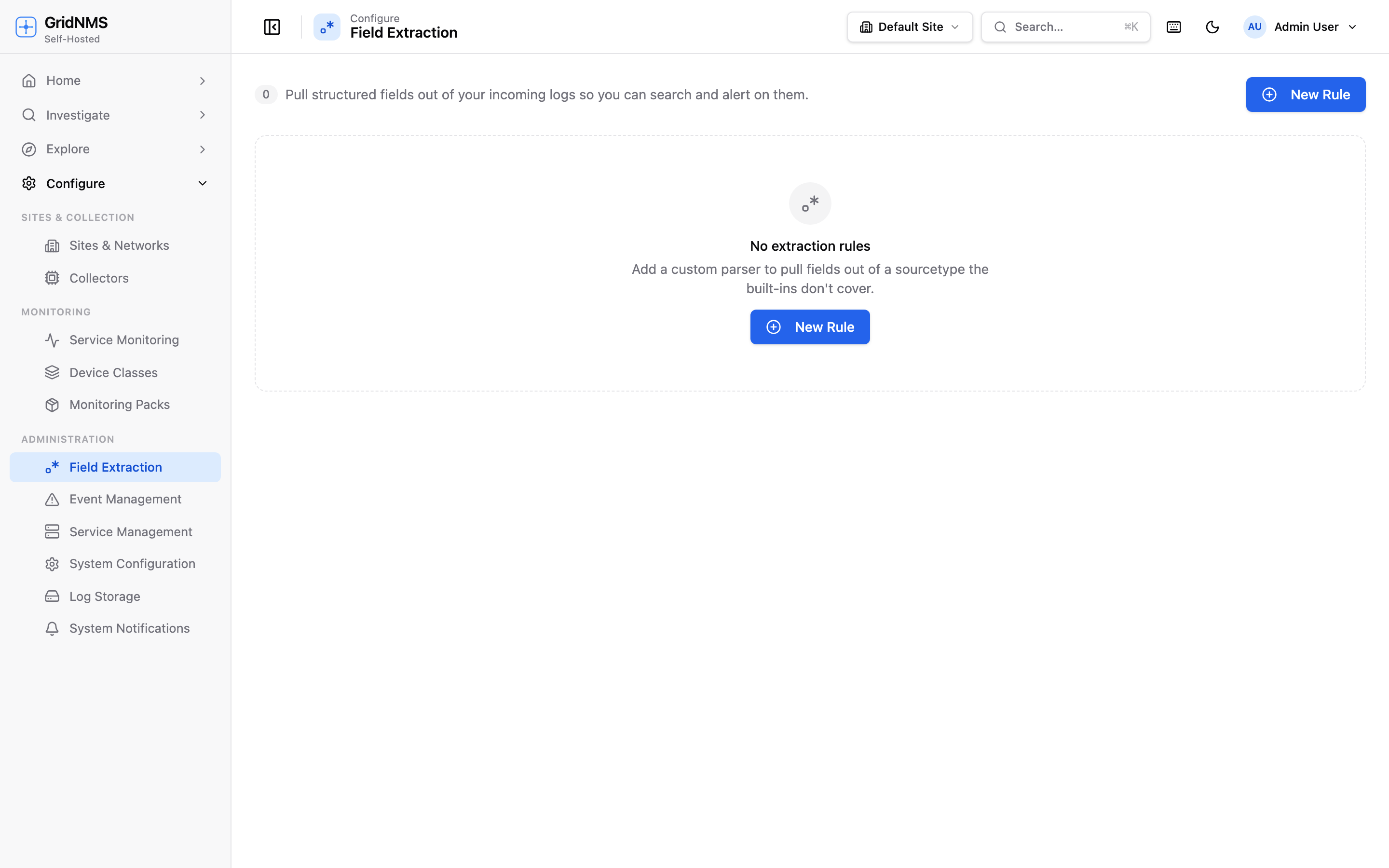 The Field Extraction page lists each extraction rule with its name, which log type it applies to, and the pattern it uses.
Why it matters
Section titled “Why it matters”Compare the two ways of asking the same question:
- Without extraction: search the raw text of a firewall log and try to guess the exact wording around a blocked connection.
- With extraction: the source IP and action are their own fields, so you can ask directly for “all denies from this one address” or “every failure for the admin account.”
Once a message’s pieces are named fields, both Log Search and Detections become far sharper. A detection can group by source IP and fire when one address fails ten times — something fuzzy text matching can’t do reliably.
Where to find it
Section titled “Where to find it”Open Configure → Field Extraction. The page lists every extraction rule with its name, the log type it applies to, and the pattern it uses. Each row has an on/off switch. Click a row to edit it, or New Rule to add one.
Creating an extraction rule
Section titled “Creating an extraction rule”Click New Rule to open the editor.
- Name — a label you’ll recognize, e.g. Firewall deny.
- Log type — which kind of log this rule applies to. Use
*to apply it to any log, or name a specific source (for example, a particular firewall or appliance type) so the rule only runs against logs from that gear. Scoping a rule to its log type keeps it from misfiring on unrelated messages. - Pattern — how to find the values you want to capture (covered below).
- Event type — an optional standard label to tag matching logs with (for example, NETWORK_CONNECTION). Leave it blank if you don’t need it.
- Enabled — whether the rule is active.
Click Save.
Writing the pattern
Section titled “Writing the pattern”The pattern describes where the values live in the message and gives each one a
field name. You name a piece of the message with the form (?<fieldname>…) —
whatever that part of the line captures becomes a field called fieldname.
For example, a pattern that captures the user and the source address from a failed-login line names two fields: one for the user and one for the source IP. After the rule runs, those values are searchable as fields instead of being buried in the raw text.
GridNMS lines fields up for you
Section titled “GridNMS lines fields up for you”You don’t have to memorize one canonical name for every concept. If you name a
field something natural like user, username, src, or sourceip, GridNMS maps
it to the standard field everything else uses — so user and username both become
the same searchable user field, and src, sourceip, or client_ip all become
the same source IP field. The tester (below) shows you the standard name your
capture will end up as, so there’s no guesswork.
Testing against a sample message
Section titled “Testing against a sample message”The editor has a built-in tester so you never have to save and hope.
- Paste a real raw log line into the Test against a sample log box.
- GridNMS applies your pattern live and shows the result:
- A list of extracted fields with their values — and, where it tidied the name, what you called it versus the standard field it became.
- “No match” if the pattern didn’t fit the line.
- A note that it matched but captured nothing if the line fit your pattern but you didn’t name any piece of it.
- A clear error if the pattern itself is malformed.
- Adjust the pattern until the right fields come out, then Save.
Editing and disabling a rule
Section titled “Editing and disabling a rule”- Click a rule to edit its name, log type, pattern, or event type.
- Use the Enabled switch to pause a rule without deleting it.
- Use Delete in the editor to remove a rule entirely.
How extracted fields help everywhere else
Section titled “How extracted fields help everywhere else”| Where | What named fields give you |
|---|---|
| Log Search | Filter on a field’s value directly — source IP = …, user = admin — instead of matching raw text. |
| Detections | Group and count by a field, so rules like “10 failures from one source IP in 5 minutes” become possible. |
| Cases | Cleaner, field-tagged evidence when you attach log lines to an investigation. |
Where to go next
Section titled “Where to go next”- Search on the fields you extract in Logs & Log Search.
- Build precise rules on top of them in Detections.
- See how logs arrive in the first place in Receiving Syslog & Traps.
docs built 2026-07-27 · 837a1c1d