
System Notifications
System Notifications are GridNMS telling you about GridNMS. They’re the notices and announcements about the platform’s own state — an update is available, a collector went offline, your license needs attention — rather than alerts about the network you’re monitoring. This page is where you decide which of these notices are active and who should be told when each one occurs.
Open it from Configure → System Notifications.
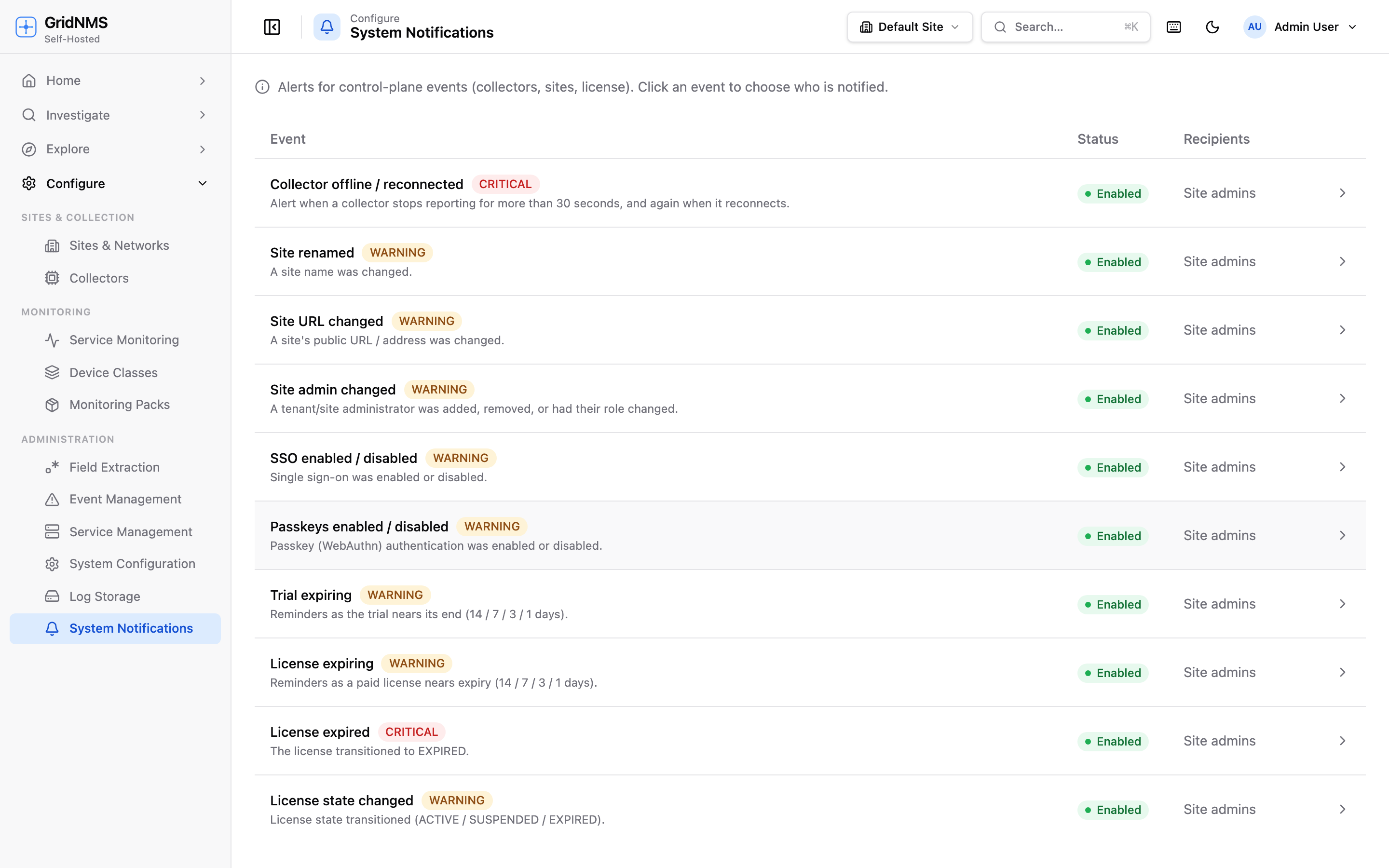 System Notifications are notices about GridNMS itself — click any one to choose who gets told.
Not the same as network alerts
Section titled “Not the same as network alerts”This is the most important thing to keep straight:
| System Notifications | Notifications | |
|---|---|---|
| What they’re about | GridNMS itself | Your network and devices |
| Examples | An update is available; a collector lost connection; a license notice | A router went down; an interface is saturated; a log detection fired |
| Where to manage them | Configure → System Notifications (this page) | On each detection, via Notifications |
If you’re trying to control who gets paged when a device has a problem, that’s handled on the detection itself — see Notifications, not this page. This page is strictly about events affecting the GridNMS platform — collectors, sites, and licensing.
What you’re looking at
Section titled “What you’re looking at”The page is a table of the platform notices GridNMS can raise. Each row is one type of notice:
| Column | Meaning |
|---|---|
| Event | The notice’s name, a short description, and its severity. |
| Status | Whether this notice is currently Enabled or Disabled. |
| Recipients | A summary of who gets told — site admins, extra email addresses, and any delivery destinations. |
Each notice carries a severity so you can tell the routine from the urgent:
- Info — informational, for awareness (for example, an update is available).
- Warning — something worth attention before it becomes a problem.
- Critical — an important platform issue you’ll want to know about right away.
Who sees system notifications
Section titled “Who sees system notifications”System notifications are aimed at the people who run GridNMS, not every user. For each notice you can direct it to any combination of:
- Site admins — administrators who have an email address on file. The page tells you how many qualify.
- Additional emails — specific addresses you type in (for example, a shared ops mailbox or an on-call address), even if they aren’t GridNMS users.
- Delivery destinations — reusable destinations you’ve already set up, such as a chat channel or a webhook, picked from a list.
A notice with none of these selected will show No recipients — it’s enabled but won’t reach anyone, so be sure to add at least one recipient when you turn a notice on.
Viewing and managing notices
Section titled “Viewing and managing notices”Open a notice
Section titled “Open a notice”Click any row to open its settings panel on the right. The panel shows the notice’s name, severity, and a description of when it fires.
Turn a notice on or off
Section titled “Turn a notice on or off”The Enabled switch at the top of the panel controls whether GridNMS raises this notice at all. Turn it off for notices you don’t care about; turn it on for the ones you want delivered. When a notice is disabled, its recipient settings are hidden because they don’t apply.
Choose who’s notified
Section titled “Choose who’s notified”With the notice enabled, set the recipients:
- Notify site admins — toggle on to send to administrators with an email on file. The panel shows how many that is.
- Additional emails — type one or more addresses, separated by commas. GridNMS checks each looks like a valid email and flags any that don’t.
- Notification endpoints — pick any reusable delivery destinations you’ve set up.
Then click Save. The recipient summary on the main table updates to reflect your choices.
Dismissing notices
Section titled “Dismissing notices”When a system notice appears in the app, anyone who sees it can dismiss it once they’ve read it — clearing it from view. Dismissing a notice that has already appeared doesn’t change whether the type of notice is enabled or who receives it in future; that’s controlled here, on this page, through the Enabled switch and the recipient settings. To stop a kind of notice from appearing at all, disable it here.
Recommended setup
Section titled “Recommended setup”A sensible starting point for most teams:
- Enable the platform notices that matter to you — at minimum the collector-connection and license notices, so you hear about anything that would quietly degrade monitoring.
- Notify site admins on the important ones so the people who run GridNMS are always in the loop.
- Add an on-call or shared ops email to the critical notices as a safety net.
- Disable any notice that’s pure noise for your environment, to keep the in-app notices meaningful.
Where to go next
Section titled “Where to go next”- Notifications — alerts about your network (down devices, saturated links, detections), which are managed separately on each detection.
- Service Management — the live health of the background services behind your monitoring.
- Monitoring Your Collectors — keep an eye on the collectors whose status these notices often report on.
docs built 2026-07-27 · 837a1c1d