
Monitoring Packs
A monitoring pack is the reusable unit that defines what GridNMS collects from a device and how it’s shown. Each pack bundles two things:
- Collectors — the scheduled tasks that gather raw data (an SNMP value or an SSH command, run on a timer).
- Views — the tabs on the device detail page that turn that data into charts, stat cards, and tables.
Packs are attached to device classes, and every device in a class automatically inherits the class’s packs. That’s why monitoring “just works” once a device has the right class — the pack does the rest.
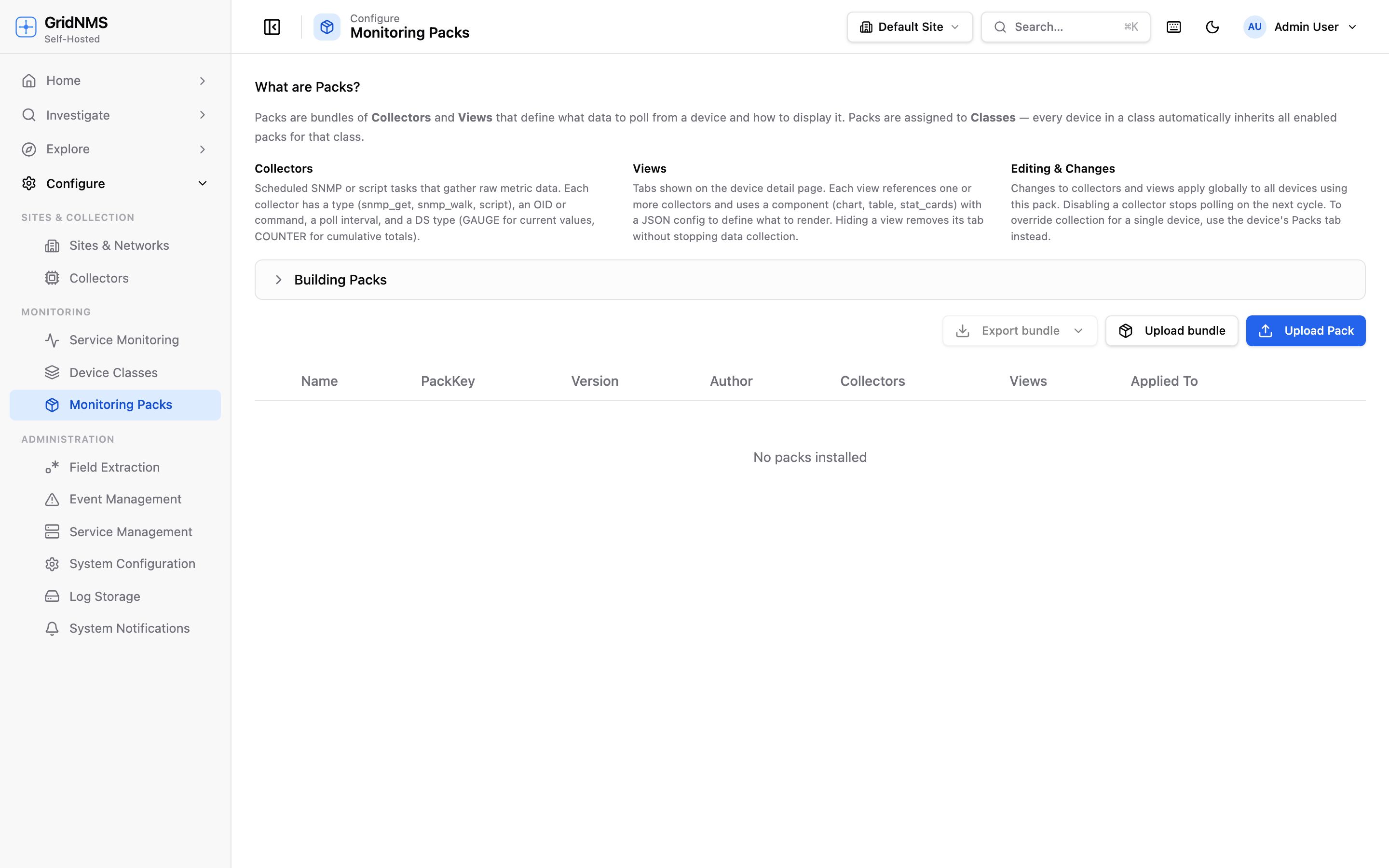 The Monitoring Packs page: the explainer at the top, an expandable “Building Packs” reference, and the table of installed packs with their collector and view counts.
Collectors — the data side
Section titled “Collectors — the data side”A collector is a single scheduled measurement. Each one defines:
| Property | What it means |
|---|---|
| Name / Label | An internal name and a human-friendly label for the data point. |
| Type | How the data is fetched — see the table below. |
| OID or Command | The SNMP OID to read, or the SSH command to run. |
| Interval | How often it runs, in seconds. |
| Value type | GAUGE for a current reading (CPU %, temperature, uptime), or COUNTER for a cumulative total (bytes, packets) that GridNMS turns into a per-second rate. |
Collector types:
| Type | What it does |
|---|---|
| snmp_get | Reads a single SNMP value at an exact OID. |
| snmp_walk | Reads a whole SNMP subtree (e.g. every interface’s traffic). |
| ssh | Runs a command over SSH and captures the output. |
| computed | Derives a value from other collectors rather than polling the device directly. |
When a collector runs, it ships the raw value back to GridNMS, which interprets it and stores it. Disabling a collector stops that measurement on the next poll cycle.
Views — the display side
Section titled “Views — the display side”A view is a tab on the device detail page. Each view:
- References one or more collectors (the data it draws from), and
- Uses a component to decide how to render that data.
| Component | Renders as |
|---|---|
| chart | A time-series line or area chart. Can plot several collectors together. |
| stat_cards | A grid of latest-value cards, one per collector. |
| table | Raw tabular data from a walk or script. |
| interfaces | The full interfaces table for the device. |
| neighbors | The device’s CDP/LLDP neighbors table. |
Hiding a view removes its tab from the device page without stopping data collection — the underlying collectors keep running.
How packs reach a device
Section titled “How packs reach a device”Pack ──applied to──▶ Class ──inherited by──▶ every device in that class- A pack is installed on this Monitoring Packs page.
- It’s applied to one or more classes (on the class’s Packs tab — see Device Classes).
- Every device in those classes — and their child classes — inherits the pack and starts collecting.
Because classes form a hierarchy, a device picks up packs from its own class and every class above it. A Cisco Router gets the generic Router packs plus any Cisco-specific ones.
The installed-packs table
Section titled “The installed-packs table”The table on this page lists every pack installed in your system:
| Column | Meaning |
|---|---|
| Name | The pack’s display name. |
| PackKey | A unique identifier, usually prefixed by vendor (e.g. cisco.router). |
| Version | The pack’s version. |
| Author | Who created the pack. |
| Collectors / Views | How many of each the pack contains. |
| Applied To | How many classes currently use the pack. |
Click any row to expand it and inspect the pack’s collectors and views, toggle individual data points, or hide a view’s tab. Use the row’s icons to download a single pack or delete it.
Installing packs
Section titled “Installing packs”There are two ways to add packs to your system.
Upload a single pack
Section titled “Upload a single pack”Use Upload Pack to install one pack from a .pack.json file. This is the right
choice for an individual pack you’ve authored, downloaded, or been sent.
Upload a bundle
Section titled “Upload a bundle”Use Upload bundle to install many packs at once from a single .tar.gz (or
.tgz) archive — for example, a complete vendor pack set. The whole bundle is
validated as a unit and applied together, so you don’t end up with a half-installed
set.
Exporting packs
Section titled “Exporting packs”To move packs between systems or back them up:
- Download an individual pack from its row in the table (the download icon).
This produces a
.pack.jsonfile you can re-upload elsewhere or use as a starting point for your own. - Export bundle packages every pack from a chosen vendor into one
.tar.gzarchive, ready to upload into another GridNMS system.
Where to go next
Section titled “Where to go next”- Device Classes — apply packs to classes so devices inherit them.
- Enabling & Disabling Data Points — turn individual collectors on or off globally or per device.
- Building a Monitoring Pack — author your own pack, or have GridNMS build one for a new device type.
docs built 2026-07-27 · 837a1c1d