
Monitoring & Managing Collectors
Collectors are the workhorses that poll your devices and receive their logs and traps. GridNMS gives you two views into their health: a per-collector view for detail, and a fleet-wide view for an at-a-glance picture across every collector and background service.
Collector updates: you’re in control
Section titled “Collector updates: you’re in control”Collector upgrades are not automatic by default. When a new collector version is published, the collector’s row on Configure → Collectors shows an update is available — open the collector and click Upgrade now to apply it. The collector downloads the new version over its existing connection and reverts on its own if the new version fails to come up healthy.
If you’d rather not click at all, set the collector’s Auto-upgrade policy to Auto after 24h or Auto after 7 days: the collector then upgrades itself once a release has been out for that hold window. The policy is per-collector, so a lab site can auto-upgrade while production stays manual.
Per-collector health
Section titled “Per-collector health”Go to Configure → Collectors. The list shows every registered collector with an Online or Offline indicator and when it was last seen.
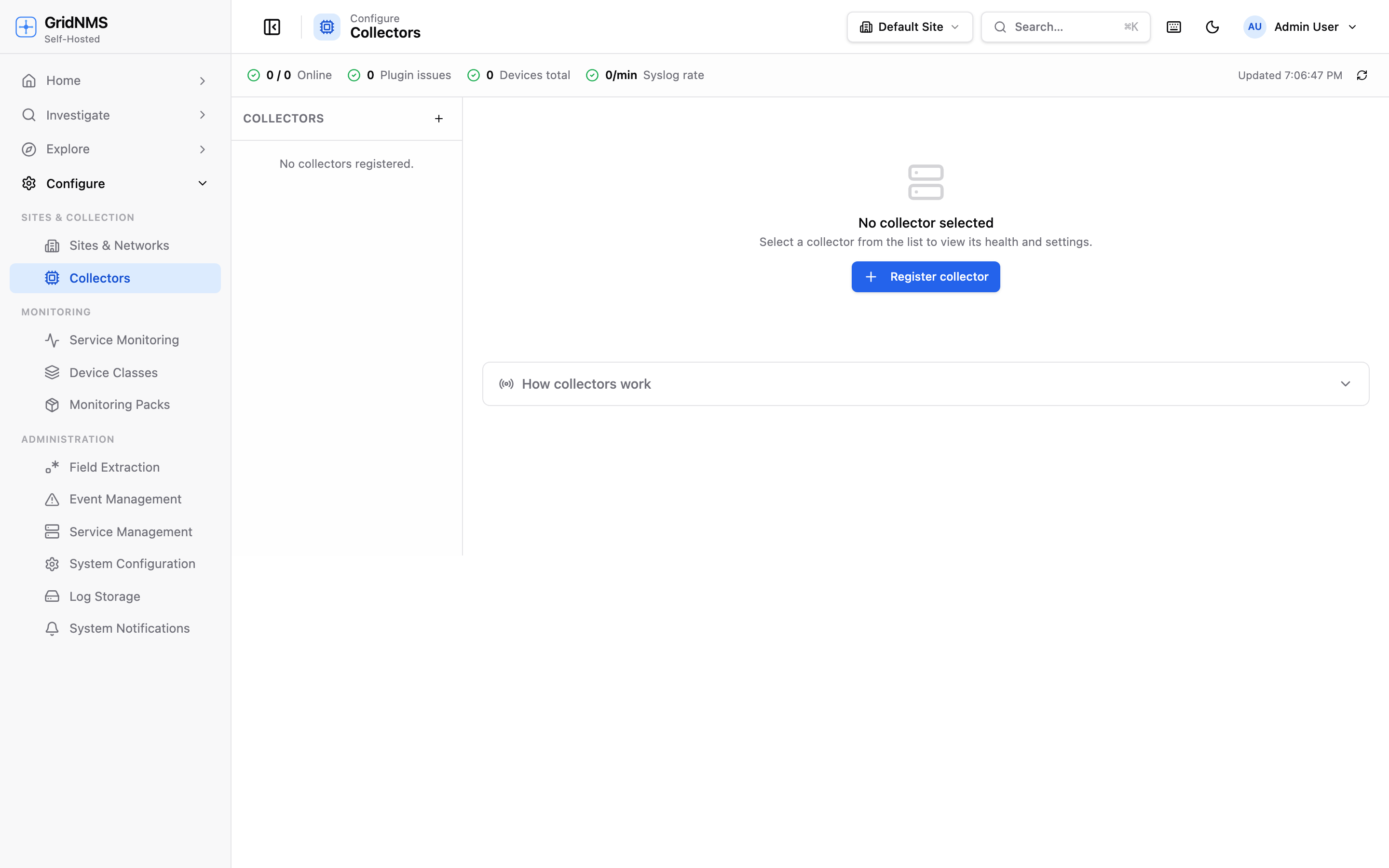 Configure → Collectors. Each collector shows online/offline status; open one for its Health, Channels, and Plugins tabs.
Open a collector to see its detail tabs:
- Health — live status and metrics: the collector’s version, when it last checked in, and usage bars for the work it’s doing.
- Channels — the live state of each connection the collector uses. See Collector Channels for a full walkthrough.
- Plugins — the status of each internal worker (described below).
Plugin status pills
Section titled “Plugin status pills”A collector runs several internal workers, each shown as a coloured pill:
| Plugin | What it does |
|---|---|
| monitor | Liveness checks — is each device up? |
| poller | Collects metrics and details from devices. |
| syslog | Receives syslog messages from devices. |
| trap | Receives SNMP traps from devices. |
Each pill shows a state:
| State | Meaning |
|---|---|
| Running (green) | Working normally. |
| Starting (amber, pulsing) | Coming up. |
| Stopped (grey) | Not running — usually because that feature isn’t in use. |
| Crashed (red) | Stopped unexpectedly. It generally restarts on its own; if a pill stays red, it needs attention. |
Metric bars, last-seen, and stale detection
Section titled “Metric bars, last-seen, and stale detection”The Health tab shows usage bars for the collector’s main jobs — devices monitored, syslog rate, and SNMP poll rate — each against the collector’s capacity. The bars turn amber as they approach the limit and red when they’re nearly maxed out, so you can spot a collector that’s running hot before it falls behind.
You’ll also see memory, uptime, and latency (the round-trip time between GridNMS and the collector).
A collector reports in with a heartbeat about once a minute. If GridNMS hasn’t heard from it in a couple of minutes, the last known figures are shown with a stale metrics warning. Stale metrics on an otherwise-online collector usually mean it’s under heavy load or its connection is unstable.
Fleet-wide view: Service Management
Section titled “Fleet-wide view: Service Management”For the big picture, go to Configure → Service Management. This page shows the health of the background services that keep monitoring running, alongside collector status across your whole fleet — all on one screen.
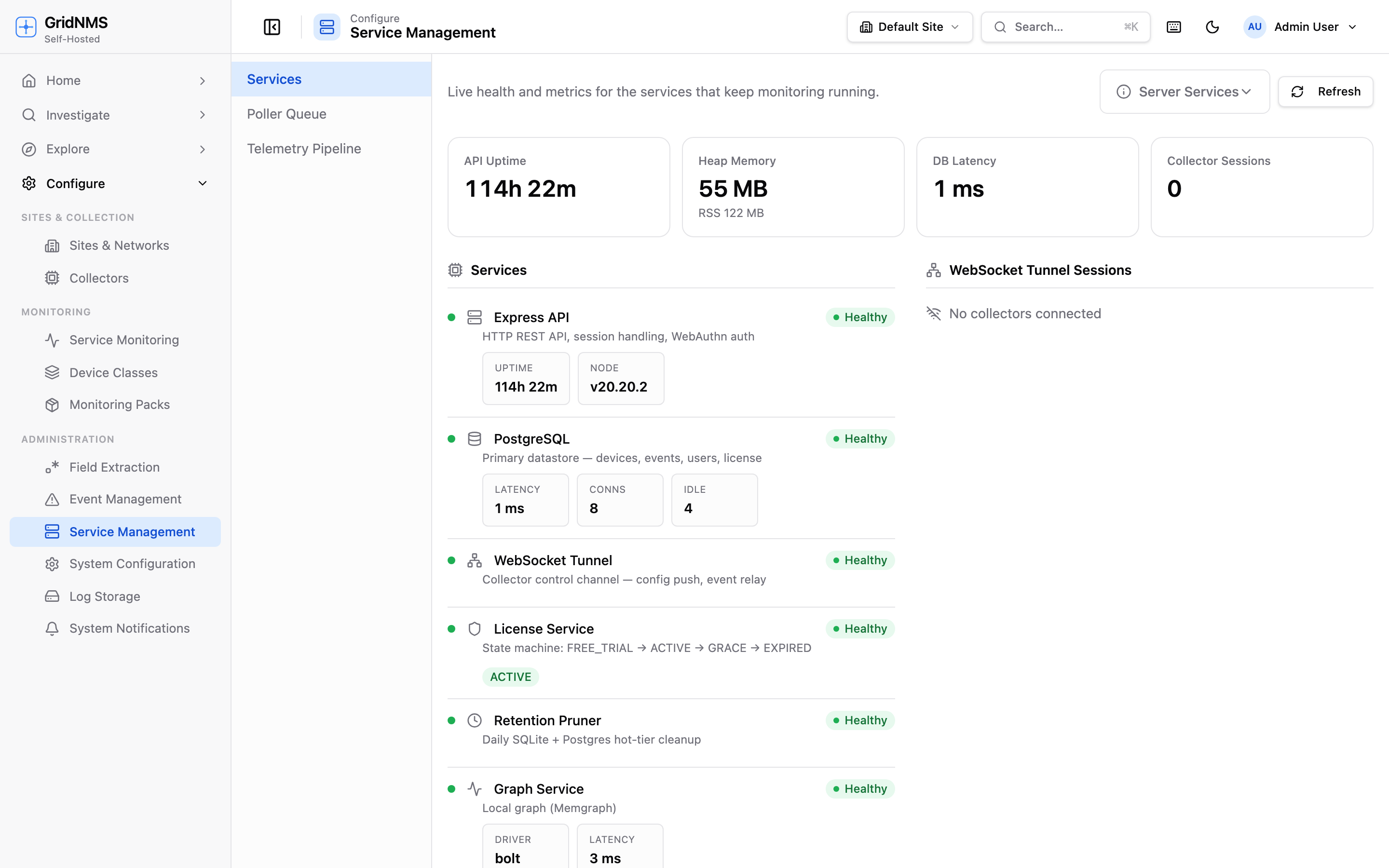 Configure → Service Management gives an at-a-glance view of background services and connected collectors.
At the top you get summary figures, and below them:
- Services — each core service with a Healthy / Degraded / Unknown badge. A green dot means it’s fine; red means it needs attention.
- Connected collectors — every collector currently connected, with how long it’s been up. If a collector you expect is missing here, it isn’t connected.
- Trend charts — recent history for key measures (memory, response time, event rate, and connected collectors) so you can see whether something is trending the wrong way rather than just its value right now.
Use Service Management as your daily glance, and drill into an individual collector under Configure → Collectors when something there looks off.
What healthy looks like
Section titled “What healthy looks like”- Every expected collector shows Online.
- Plugin pills are green (or grey for features you’re not using) — none red.
- Metric bars are well below their limits (green, not amber or red).
- The collector’s Channels show recent activity with no climbing buffer and no drops (see Collector Channels).
- No stale metrics warnings.
First steps when something’s wrong
Section titled “First steps when something’s wrong”A collector is Offline
Section titled “A collector is Offline”- Confirm the collector process is actually running where you deployed it.
- Check its network path to GridNMS — the collector makes an outbound connection, so a firewall or proxy change can cut it off.
- Once connectivity returns, the collector reconnects on its own — you don’t need to re-register it.
- Check last seen on the Collectors list to gauge how long it’s been gone.
A channel is backed up
Section titled “A channel is backed up”- Open the collector’s Channels tab and watch the logging channel buffer depth.
- If the buffer drains back toward zero, it was a temporary traffic burst — nothing to do.
- If it keeps climbing or you see drops, the collector is receiving more than it can ship. The collector may be undersized for its log volume, or its connection to GridNMS may be constrained.
- See Collector Channels for what each channel statistic means.
A plugin pill is red (Crashed)
Section titled “A plugin pill is red (Crashed)”- Give it a moment — crashed workers usually restart automatically.
- If it stays red, the collector is likely under stress or hitting a limit. Check its metric bars on the Health tab.
- If it persists, see Troubleshooting.
Related pages
Section titled “Related pages”- Collector Channels — read the live per-channel health stats.
- Receiving Logs & Traps — how devices send logs to a collector.
- Troubleshooting — deeper fixes when the first steps don’t resolve it.
docs built 2026-07-27 · 837a1c1d